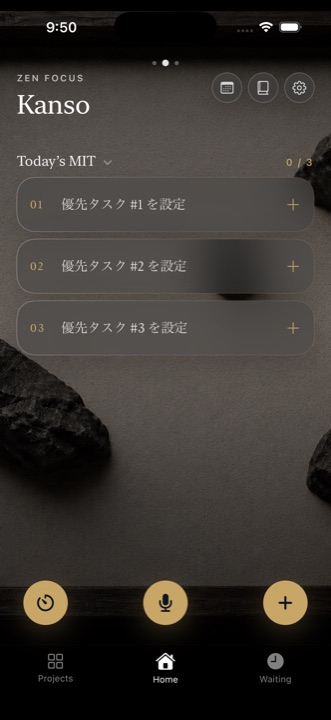
Only three things today. Everything you need to know, in the order you'll need it.
As of version 1.0.6iPhone · iPad · Apple Watch
01The idea behind Kanso
Kanso means simplicity. The app helps you focus on the three things that matter most today.
Only three slots. Because there are few, choosing means something.
Everything else goes to the backlog. Out of your head, into a place you trust.
Finish, and the garden grows. The background changes with each task you complete. Finish all three and petals fall.
Choose in the morning, let go at night. Two quiet screens frame your day.
02How the app is laid out
There are three screens side by side: Projects — Home — Waiting On. The app opens on Home, in the middle.
Swipe sideways to move between them. Keep going past either end and you wrap around to the other side.
Use the tab bar at the bottom (Projects · Home · Waiting).
A light tap on the left or right edge of the screen also moves you across.
The three round buttons at the top right are Calendar, Journal and Settings. They work from any screen.
ON IPADTurn the iPad sideways and the screen splits, with the Calendar or Journal on the left. Turn it upright and you get the same layout as on iPhone.
03Today's three
The three slots in the middle of Home. This is where the day happens.
All three are taken, or you set a future date → into the backlog
You named someone else → into Waiting On (see chapter 10)
A task dated in the future gathers under UPCOMING at the bottom of Home, in date order (collapsed by default — tap the heading to open, tap a row for details). When its day arrives, it joins the regular lists. Recurring tasks don't appear here.
What you can fill in
Field
What it does
Title
Required
Due date
When it needs to be finished
Work day
When you'll actually do it
Work time
Start and end. The end fills in for you (25 minutes by default)
Reminder
How far ahead to be reminded (at the start, or 5, 10, 15 or 30 minutes before)
Assignee
Leave blank for yourself. Name someone else and it moves to Waiting On
Notes
Free text. Any web address becomes tappable
Attachments
Images, PDFs and links. Kept on this device only
Write a date in the title
Type something like "tomorrow 10am draft the proposal" and Kanso offers to set that date and time for you, just below the field. Tap the suggestion to apply it — the words disappear from the title. Ignore it and nothing changes.
You included a time → offered as a work time
You wrote only a date → offered as a due date
05The backlog
Not today — but not forgotten either. Up to 5 on the free planUNLIMITED WITH PRO
To do this
Do that
Open a task
Tap it
Move it into today
Press and hold, then drag it up into one of the three slots
Reorder
Press and hold, then drag up or down
Sort the whole list
Tap ↑↓ and choose by due date or by priority
Move to tomorrow / delete
Swipe right / swipe left
Drop a task into a full set of three and the one it displaces returns to the backlog.
Tasks that have been waiting
After two weeks, a small leaf and a day count appear beside a task. After a month, the colour shifts slightly. Kanso never nags. Let it go, or take it on — the app only makes it visible.
06Swipe reference
Where
Swipe right
Swipe left
Today's three / backlog
To tomorrow
Delete
Tasks on the Calendar
To tomorrow
Delete
Events from other apps
—
Delete
Waiting On
To tomorrow
Delete
Projects
Star (pins it to the top)
Delete
Mind Dump notes
Make a task
Delete
Pull a little further and the button stays open. Tapping the row while it's open simply closes it again, so nothing happens by accident.
To tomorrow moves the work day forward, and clears the time, the reminder and any calendar entry.
07Capturing a thought (Mind Dump)
Get it out of your head and return to what you were doing. Up to 3 a day on the free planUNLIMITED WITH PRO
Press the microphone button at the bottom of Home and dictation starts immediately (press again to stop). You can type instead.
Your notes collect in the Mind Dump tab of the Journal.
Swipe a note right to turn it into a task, with the text already filled in. Save it and the original note disappears.
Tap to edit, swipe left to delete.
You can also capture from Siri and from other apps (see chapter 17).
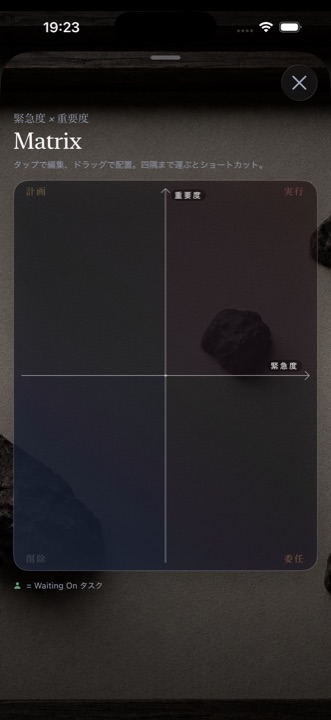
08Setting priorities (Matrix)
Two questions — how urgent, and how important — laid out so you can see what to do first.
Matrix — where you place a task decides today's order
The further right, the more urgent. The higher up, the more important.
Quadrant
What it means
Top right — Do
Important and urgent. Do it now
Top left — Plan
Important, not urgent. Make time for it
Bottom right — Delegate
Urgent, not important. Hand it off
Bottom left — Drop
Neither. Let it go
How to use it
Drag a task to place it. Its position sets the priority, and Home reorders itself to match. If a slot is free today, the highest priority task moves up into it automatically.
Tap a task to edit it.
Tasks you haven't placed yet wait in the centre, outlined with a dashed border.
The four corners
While you're dragging, a target appears in each corner. Drop a task there to settle it in one move.
Corner
What happens
Top left — Schedule
Set the due date and the time to work on it
Top right — MIT
Move it straight into today's three
Bottom right — Assign
Choose who does it (hand it off, or take it back)
Bottom left — Delete
Delete it, after a confirmation
Open the Matrix from the Journal's Matrix tab. It also appears once a day when you open the app.
ON THE FREE PLANYou can move tasks around once a day — the first time you open it. Looking at the Matrix, and tapping a task to edit it, is never limited.ANYTIME WITH PRO
09Choosing when to work
See the month, then decide which day. Kanso connects to the calendars already on your iPhone, including iCloud and Google.
The first time you open it, Kanso asks for calendar access. Without it, no events appear. All-day events are never shown.
The three dots under each date
Something is scheduled — a calendar event, or a task with a time
Something is due
A recurring task falls on this day
Swipe sideways or use ‹ › to change month. Tap the month name to jump to any year and month.
The list below
In order: scheduled events → due → recurring → today's three → backlog → completed. While you're looking at today, events quietly disappear as they finish — but a task you haven't completed stays, with a red border, so unfinished work is easy to spot. Complete it and it moves to Completed.
Task rows behave as they do on Home. Events from other apps can only be deleted, by swiping left — and they disappear from the original calendar too.
The calendar button (📅+)
Tap it and Kanso finds a free gap and books focus time in your calendar. It looks through today's working hours (9am to 6pm by default), then the rest of today, then the coming week. A reminder five minutes ahead is set for you. If time is already booked, you can re-book it, release it, or cancel.
The Whitespace button
To the right of the date heading. It reserves ten minutes of quiet in your calendar, preferring the gap between 2pm and 3.30pm. Once a day. If the day is completely full, Kanso suggests taking a single minute to breathe instead.
Press and hold to place a task in time
Press and hold a task. The week and a time scale appear.
Move your finger and the card follows, showing the time it would land on, in five-minute steps.
Where it lines up with the events around it, the card settles into place with a small nudge you can feel.
Where it would overlap something, the card turns orange. Let go and you'll be offered three ways out.
Lift your finger to confirm. Kanso then offers to set a reminder.
When it overlaps
Result
Allow the overlap
Place it as it is
Shorten it to fit the gap
Trim it to end when the next event begins
Push the later events back
Shift everything after it down the day
TWO WAYS TO SET A TIMEPress and hold decides when you'll work on something, inside Kanso. The calendar button (📅+) puts an actual entry in your iPhone calendar. If a task is already booked there, moving it here moves the calendar entry too.
10Work you handed off (Waiting On)
Park what someone else is doing, and get it off your mind. Up to 3 on the free planUNLIMITED WITH PRO
Add one with the + at the bottom right. A title and a name are required.
Kanso reminds you to check in three days later, at 10am.
Rows work as they do on Home (tap to open, swipe right for tomorrow, left to delete, circle to complete).
The list sorts itself: due today first, then work planned for today, then starred. You can still reorder by hand.
Change the assignee back to yourself and the task returns to your own list.
11Projects
A body of work with several people in it. One project on the free planUNLIMITED WITH PRO
Give it a name, an owner, the people involved and a short description.
Each card shows progress as a percentage — how many of its tasks are finished.
Swipe right to star it, left to delete it, press and hold to reorder.
Open a project and tap + to add a task to it. Name someone else and it becomes a Waiting On item within the same project.
When every task in a project is done, a small celebration plays.
12Looking back (Journal)
Open it with the book icon at the top right. It has three tabs.
Everything you finished in the last 90 days, grouped by day
A paperclip beside a finished task means it has notes or attachments. Tap to read them.
This week in reviewPRO
From the card at the top of Done. Your week appears as a rock garden of seven stones.
A day where you finished all three is a large golden stone; a day with something finished is a small white point
Tasks completed, days you reached three, and your current streak
Up to three tasks that have been waiting a long time, offered without pressure
Arrows take you back through previous weeks
13Morning and evening
Morning — clearing what's left
If anything from yesterday is unfinished, Kanso shows it when you open the app. For each task, choose bring it into today, move it to the backlog, or delete it. The screen closes once everything has a home. With more than one task, you can send all the rest to the backlog at once.
Evening — closing the day
From 7pm, an entry point appears on Home, once a day. It has four steps.
Today — see what you finished
What's left — tomorrow, backlog, or delete
Tomorrow's three — choose them now; you can also write something new
Good night — a closing thought
Do this and the morning screen won't appear. Stop partway and everything you decided is kept. You can turn on an evening reminder in Settings (9pm by default, off to begin with).
14Recurring tasksPRO
Set them up in Settings → Manage Recurring Tasks. Choose daily, weekly (by weekday) or monthly (by date).
Each day's task appears in the backlog on its own.
Swiping right on the Calendar moves only that day's occurrence to tomorrow. Swiping left deletes only that occurrence. The schedule itself stays.
15Focus timer
The left button at the bottom of Home. Choose 3, 5, 10 or 25 minutes, or set anything from one minute to three hours.
It keeps running when you close the screen, and when you close the app. You'll hear it finish.
While it runs, the time remaining shows on your Lock Screen. Tap it to come back.
16Notifications
Kanso doesn't ask for permission the moment you open it. It asks the first time a notification would actually be useful.
Notification
When it arrives
Work start time
A few minutes before you planned to start. You can complete the task, or move it to tomorrow, straight from the notification
Progress check
Three days after you hand something off, at 10am
Follow-up reminder
Before the time you set for a task you handed off
Evening review
Daily, at the time you choose (9pm by default, off to begin with)
Notifications for tasks you completed on another device are cancelled automatically.
17Using Kanso elsewhere
Widgets
Size
What it shows
Small
Today's three. Tap a checkbox to complete a task without opening the app
Medium
Today's three and what's coming up next
Large
This month and next, with today's three and your schedule
Lock Screen widgets are available too, and a Matrix widget that opens the priority screen when tapped.
Apple Watch
See today's three and your progress. Tap to complete — it reaches your iPhone.
Siri
Say "Add a note to Kanso" or "Capture in Kanso" and it goes straight into Mind Dump.
Sharing from another app
Share a web page or some text to Kanso, add a line of your own, and it's saved to Mind Dump.
Importing from Reminders
Settings → Import from Reminders. Choose any unfinished reminders and they join your backlog. Nothing changes in Reminders itself, and nothing is ever imported twice.
18Using more than one device
Signed in with the same Apple ID, your iPhone and iPad stay in step on their own.
It can take anywhere from seconds to a few minutes. If something hasn't arrived, close and reopen the app on both devices.
Settings → iCloud sync shows the current state.
Image and PDF attachments don't sync. They stay on the device you added them to.
Version, user guide, review, social, share, contact
Legal
Privacy policy and terms of service
20Free plan and Kanso Pro
Feature
Free
Pro
Today's three
3
3 (the same)
Backlog tasks
5
Unlimited
Mind Dump entries
3 a day
Unlimited
Projects
1
Unlimited
Waiting On
3
Unlimited
Moving tasks in the Matrix
Once a day
Anytime
Recurring tasks
—
Yes
This week in review
—
Yes
Backgrounds (bonsai, blossom)
—
Yes
Pro is a subscription, monthly or yearly, with a 7-day free trial. Cancel whenever you like. The current price is shown in the app.
NOTHING IS DELETED IF YOU CANCELYour recurring schedules stay. Tasks beyond the free limits stay. You simply can't add new ones until you're back under the limit. The background returns to the rock garden, and comes back if you subscribe again. After changing phones, use Restore purchases.
21Privacy
Kanso collects nothing about you. There is no analytics and no advertising code in the app.
Your tasks live on your device and in your own iCloud. The developer cannot see them.
Dictation is handled by Apple's speech recognition on your iPhone.
Kanso asks for four permissions: Calendar (booking focus time), Reminders (importing), Microphone and Speech Recognition (dictation) and Notifications (reminders).
22If something goes wrong
What you're seeing
What to check
Changes aren't reaching my other device
Sync can take a few minutes. Close and reopen the app on both devices
Notifications aren't arriving
iPhone Settings → Notifications → Kanso. Then check the task has a work time and a reminder switched on
My calendar events don't appear
iPhone Settings → Privacy → Calendars, and allow full access. All-day events are never shown
I deleted a task by mistake
Tap it under DELETED at the bottom of Home to restore it — the same day only
My background went back to the rock garden
Pro has expired. Subscribe again and your choice returns
I can't find a task I added
Open UPCOMING at the bottom of Home — future-dated tasks line up there by date. They're on the Calendar too
A review screen appeared this morning
Tasks from yesterday are still open. Give each one a home and it closes
If that doesn't help, get in touch from Settings → About → Contact.