
並べると、見えてくる。Lay it out, and you’ll see.
思いついたことを一枚ずつ付箋にして、和紙の上に自由に並べる。
つないで、まとめて、見返すうちに、考えが静かに形になっていきます。Put each thought on its own sticky and lay them out freely on washi.
As you connect, gather, and look back, your thinking quietly takes shape.
-
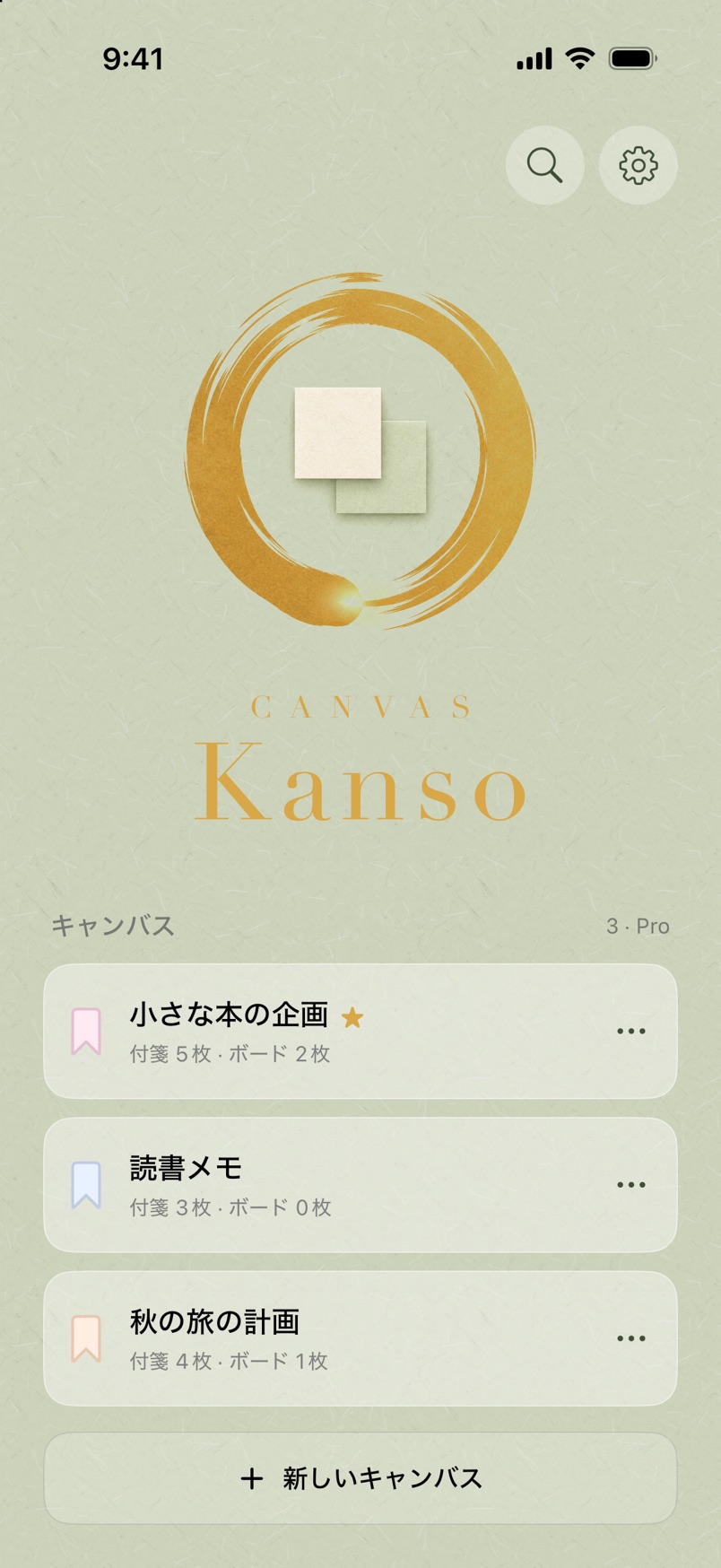
Homeしおりの色で、キャンバスを見分けるTell canvases apart by bookmark color
-
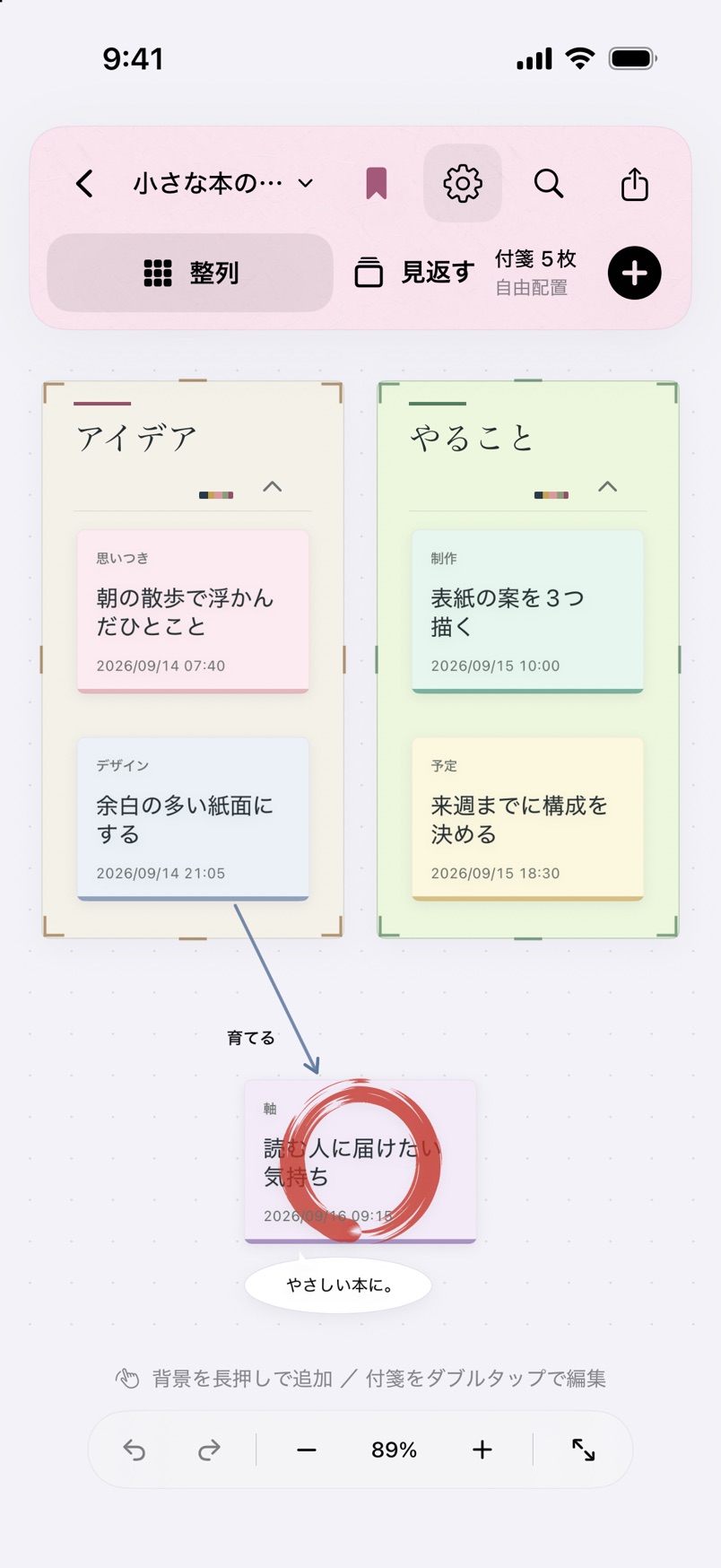
Canvas付箋とボードを、自由に並べるLay out stickies and boards freely
-
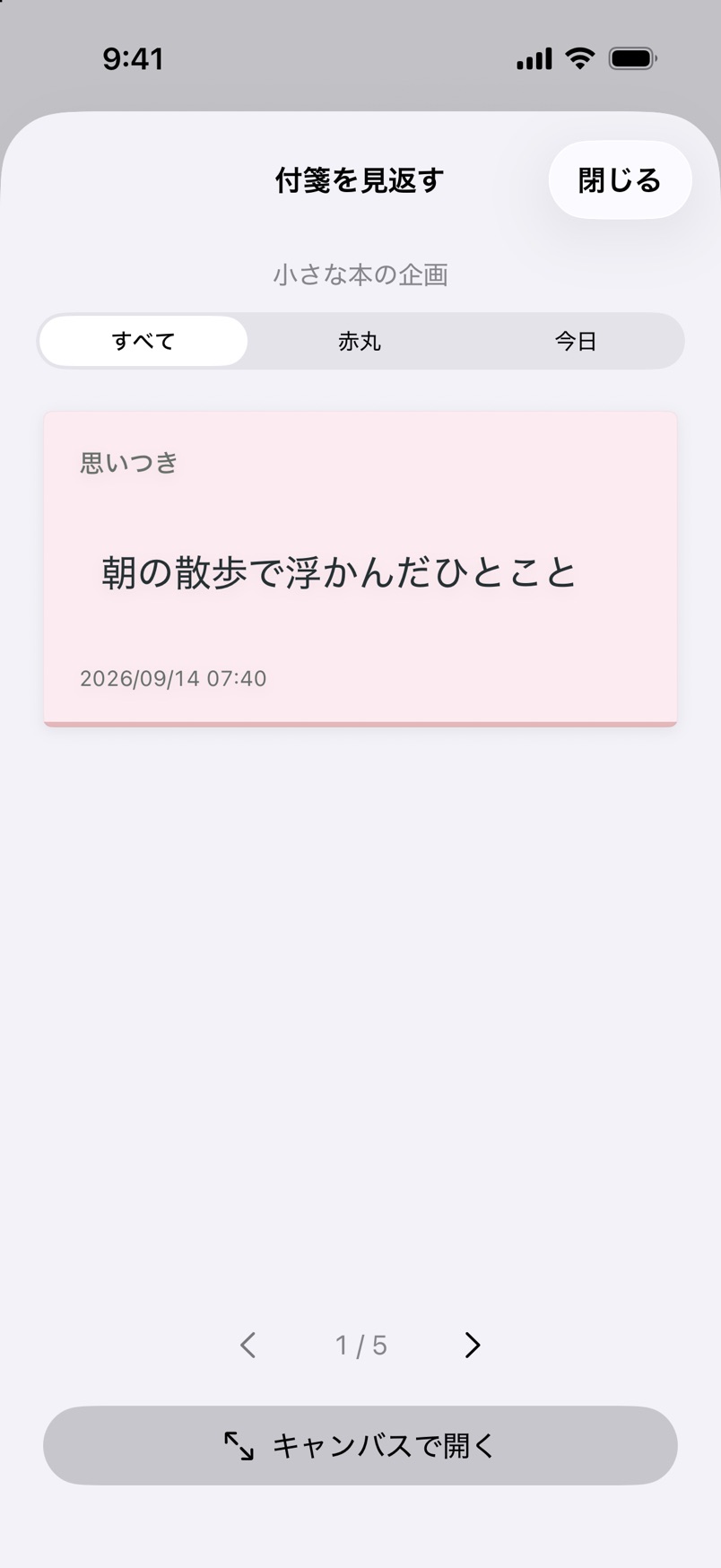
Review一枚ずつ、落ち着いて読み返すRead them back calmly, one at a time
はじめにThe idea
頭の中にあるうちは、
考えはいつも散らかって見えます。
書き出して並べるだけで、
つながりや順番が見えてくる。While they stay in your head,
thoughts always look scattered.
Write them out and set them side by side,
and the links and the order appear.
Kanso - Canvas は、そのための余白だけを用意したアプリです。簡素(かんそ)——余分なものを取り除き、大切なものだけを残す。その考え方を、一枚のキャンバスにしました。Kanso - Canvas gives you only the space for that. Kanso — taking away what is extra and keeping only what matters — made into a single canvas.
全体像The whole flow
考えが、形になるまでFrom a thought to a shape
-
01
書きとめるWrite it down
「+」か、背景の長押しで、その場に一枚。タグ・色・画像も添えられます。Tap + or press and hold the background to drop a sticky right there. Add a tag, a color, or an image.
-
02
並べるLay it out
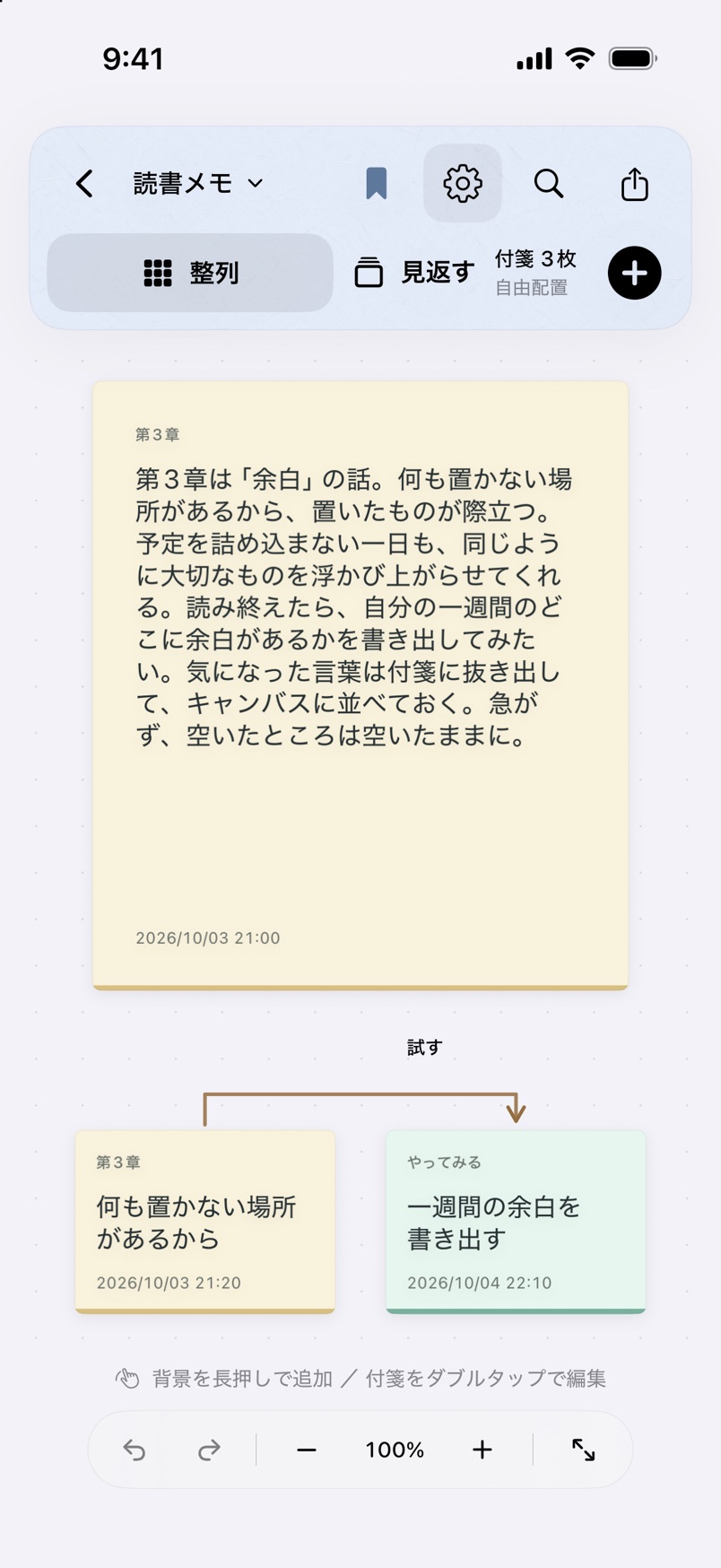
端のないキャンバスに自由に置き、コルクボードに集めてまとめます。Place stickies anywhere on a canvas without edges, and gather them on corkboards.
-
03
つなぐConnect
付箋どうしを矢印で結び、向きと見出しで考えの流れを残します。Link stickies with arrows, and keep the flow of your thinking with a direction and a label.
-
04
見返すReview
一枚ずつ大きく表示して読み返し、次の一手を決めます。Read them back one at a time, large, and decide your next move.
付箋とコルクボードStickies and corkboards
和紙の上に、自由に置く。Place anything, anywhere, on washi.
付箋は淡い12色の和紙。キャンバスに端はなく、ピンチで広げたり縮めたりしながら、上下左右どこにでも置けます。関係のある付箋はコルクボードに集め、ボードの中にボードを入れることもできます。Stickies come in twelve soft washi colors. The canvas has no edges: pinch to zoom in and out, and place things in any direction. Gather related stickies on a corkboard, and nest boards inside boards.
- 付箋 12色12 sticky colors
- 画像の付箋Image stickies
- ボードの入れ子Nested boards
- 取り消し・やり直しUndo & redo
ノートNotes
長い考えは、ノート用紙に。Longer thoughts get note paper.
本文が140文字を超えると、文章はそのままに、幅の広いノート用紙へ切り替わります。背景の長押しから「ノートを追加」を選べば、はじめからノートで書くこともできます。ノートの中で気になった一節を選んで「付箋にする」を押すと、同じ色とタグの付箋として抜き出せます。元の文章はそのまま残ります。When a sticky goes past 140 characters, it moves onto wider note paper with every word kept. Choose Add notebook from the background menu to start on note paper right away. Select a passage in a note and tap Make Sticky to pull it out as a sticky with the same color and tag. The original text stays where it is.
- 長文のノートLong notes
- 一節を付箋にA passage to a sticky
- 色とタグを引き継ぐKeeps color and tag
見返すReview
一枚ずつ、読み返す。Read them back, one at a time.
「見返す」を開くと、付箋が一枚ずつ大きく表示されます。「すべて」「赤丸」「今日」で絞り込み、左右にめくって読み進める。気になった一枚は「キャンバスで開く」で元の場所へ戻れます。Open Review and your stickies appear one at a time, large. Filter by All, Circled, or Today, and swipe to move through them. When one catches your eye, Open on canvas takes you back to where it sits.
散らばった考えも、一枚ずつなら静かに読めます。Even scattered thoughts read quietly, one at a time.
キャンバスとしおりCanvases and bookmarks
テーマごとに、一枚のキャンバス。One canvas for each theme.
企画、読書メモ、旅の計画。テーマごとにキャンバスを分け、しおりの色で見分けます。よく開くものはスターで上に。並び順は長押しで入れ替えられ、すべてのキャンバスを横断して検索できます。A plan, reading notes, a trip. Give each theme its own canvas and tell them apart by bookmark color. Star the ones you open often, press and hold to reorder, and search across every canvas at once.
- しおり 12色12 bookmark colors
- スターStars
- 長押しで並べ替えPress to reorder
- 横断検索Search everything
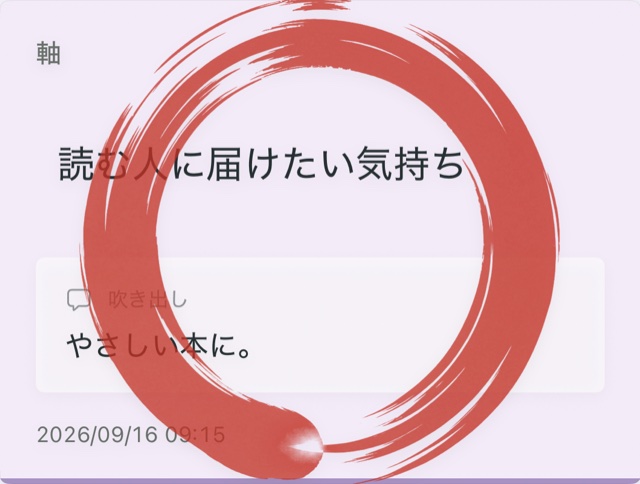
赤丸The red circle
大切な一枚に、赤い円相。A red ensō for the one that matters.
付箋を長押しして「丸をつける」を選ぶと、ロゴの円相と同じ筆跡が、赤く本文に重なります。見返すときの「赤丸」の絞り込みにも、書き出した画像にも引き継がれます。Press and hold a sticky to circle it, and the same brushstroke as the logo’s ensō lands in red over its words. It carries through to the Circled filter in Review, and to your exported images.
ほかにもAnd more
考えるための道具を、必要なだけ。Just the tools you need to think.
タグ・日付で整列Arrange by tag or date
並べ替えても「元の配置に戻す」で、自由に置いた形へいつでも戻れます。After sorting, Restore original layout takes you back to your free arrangement.
整列ガイドAlignment guides
付箋やノートを動かすと、近くの紙やボードの端・中央に補助線が出て、軽く吸い付きます。Drag a sticky or note, and guides appear at the edges and centers of nearby items, with a gentle snap.
ボードの折りたたみFold a board
閉じたボードは、タイトルと枚数を記した小さな紙の束に。中の配置はそのまま残ります。A folded board becomes a small bundle showing its title and count. Everything inside keeps its place.
ダブルタップで全体へDouble-tap to see it all
背景のダブルタップでキャンバス全体を表示し、もう一度で元の位置と倍率に戻ります。Mac はダブルクリックで。Double-tap the background to fit the whole canvas, and again to return to where you were. On Mac, double-click.
矢印でつなぐConnect with arrows
向きは3種類。間にほかの付箋があれば、曲線でよけて回り込みます。Three directions. If other stickies are in the way, the line curves around them.
2本の指でつなぐLink with two fingers
iPhone・iPad では、2枚を2本の指で同時にタップすると矢印でつながり、続けてタップすると向きが変わります。On iPhone and iPad, tap two stickies at once with two fingers to link them. Tap again to change the direction.
吹き出しSpeech bubbles
付箋の横に、1,000字までの補足を添えられます。Add a note of up to 1,000 characters beside any sticky.
ほかのアプリからFrom other apps
共有メニューの「Canvas」で、文章・リンク・画像をそのまま一枚の付箋に。Use Canvas in the share menu to turn text, a link, or an image into a sticky.
テンプレートTemplates
よく使う並びを保存して、新しいキャンバスの型にできます。Save a layout you use often as the starting point for new canvases.
30日間の保管Kept for 30 days
削除した付箋は「最近削除した付箋」から戻せます。Deleted stickies can be brought back from Recently deleted.
バックアップと復元Backup & restore
すべてのキャンバスを、画像ごと一つのファイルに書き出せます。Export every canvas, images included, to a single file.
Zen Focus へ送るSend to Zen Focus
付箋の内容を、タスク管理の Kanso - Zen Focus へ渡せます。Hand a sticky over to Kanso - Zen Focus, our task app.
無料と ProFree and Pro
無料ではじめて、必要なら Pro を。Start free. Add Pro when you need it.
無料Free
ダウンロードしてすぐにFrom the first launch
- キャンバス 2枚・自作テンプレート 1個までUp to 2 canvases and 1 saved template
- 付箋・ノート・画像・コルクボード・矢印の編集Stickies, notes, images, corkboards, and arrows
- 検索・見返すSearch and Review
- 端末内への自動保存Automatic saving on your device
- バックアップと復元Backup and restore
Canvas Pro
買い切り(サブスクリプションではありません)One-time purchase — not a subscription
- キャンバス・テンプレートの保存数に上限なしNo limit on canvases or templates
- PNG・PDF で書き出しExport as PNG or PDF
- 自分の端末どうしの iCloud 同期iCloud Sync across your own devices
- 同じ Apple Account の iPhone・iPad・Mac でOn iPhone, iPad, and Mac with the same Apple Account
価格はアプリ内の購入画面でご確認ください。購入後に Pro をやめても、作ったキャンバスが消えることはありません。See the purchase screen in the app for your local price. Your canvases are never deleted if Pro is no longer active.
安心のためにPeace of mind
考えは、あなたの端末に。Your thoughts stay with you.
キャンバスの内容は端末の中に保存され、開発者のサーバーへ送ることはありません。iCloud 同期は、オンにしたときだけ、あなた自身の iCloud に保存されます。What’s on your canvases is stored on your device and never sent to the developer’s servers. iCloud Sync stays off unless you turn it on, and then saves only to your own iCloud.
登録なしNo sign-up
アカウントもログインも必要ありません。No account and no login required.
広告・解析なしNo ads or analytics
広告やアクセス解析の仕組みは入れていません。There are no ads and no analytics inside.
選んだ画像だけOnly what you choose
写真は選んだ一枚だけを受け取り、位置情報などは残しません。Only the photo you pick is received, without its location data.
くわしくは プライバシーポリシー をご覧ください。For the details, see the Privacy Policy.
よくある質問Frequently asked questions
無料でどこまで使えますか。How much can I do for free?
キャンバス2枚と自作テンプレート1個まで保存できます。付箋・ノート・画像・コルクボード・矢印の編集、検索、バックアップと復元は無料です。You can keep up to 2 canvases and 1 saved template. Editing stickies, notes, images, corkboards, and arrows, search, and backup and restore are all free.
Canvas Pro はサブスクリプションですか。Is Canvas Pro a subscription?
いいえ、買い切りのアプリ内購入です。同じ Apple Account の iPhone・iPad・Mac で使えます。No. It’s a one-time in-app purchase, available on iPhone, iPad, and Mac with the same Apple Account.
ほかの人と一緒に編集できますか。Can I edit together with other people?
iCloud 同期は自分の端末どうしのためのもので、共同編集の機能はありません。Canvas Pro では PNG・PDF に書き出して共有できます。iCloud Sync is for your own devices; there is no collaborative editing. With Canvas Pro you can export to PNG or PDF and share that.
消してしまった付箋は戻せますか。Can I get a deleted sticky back?
削除から30日以内なら、設定の「最近削除した付箋」から戻せます。Yes, within 30 days — from Recently deleted in Settings.
Contact
お気軽にどうぞ。Get in touch.
ご質問・ご感想・不具合のご報告など、こちらからどうぞ。Questions, feedback, or bug reports — we’d love to hear from you.